The Gata Only CapCut template is a trending video edit that many creators are using on Instagram Reels and YouTube Shorts. It is made for anyone who wants a clean, beat-synced reel without learning video editing. You do not need any editing skill. Pick your clips, tap a few buttons, and CapCut builds the video for you.
What Is the Gata Only CapCut Template?
The Gata Only CapCut template is a ready-made edit inside the CapCut app. It is built around a popular trending audio. You add your own photos or video clips, and the template places them into the timing of the edit.
This trend does not depend on heavy effects or complicated cutouts. The strength of the edit is its timing and flow, so it is easy to use and easy to repeat.
Why Is the Gata Only Trend So Popular?
- Simple look. The edit stays clean, so your clips stay the main focus.
- Easy to make. One template, your clips, and an export. That is all.
- Trending audio. Reels that use a popular sound often get more attention in the feed.
- Flexible. It works for travel clips, friends, couple photos, daily life, and personal moments.
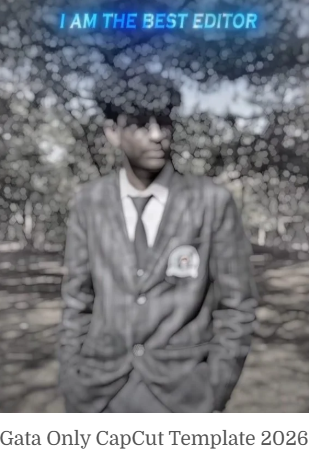
Gata Only CapCut Template Details at a Glance
- Template name: Gata Only CapCut Template
- App: CapCut (Android and iPhone)
- Style: Trending audio-synced edit with a simple, clean look
- Input: Multiple photos or video clips from your gallery
- Best for: Instagram Reels, YouTube Shorts, WhatsApp Status
- Difficulty: Easy
- Price: Free to use. Check CapCut for any paid features.
How to Use the Gata Only CapCut Template (Step by Step)
- Install CapCut. Download the latest CapCut app from Google Play (Android) or the App Store (iPhone).
- Open the template link. Tap the template button in this article. It opens the template inside CapCut.
- Watch the preview. Check that the style is what you want.
- Tap “Use Template.” CapCut opens your gallery.
- Add your clips. Select the photos or videos in the order you want. Choose the best clips for the first few seconds.
- Tap “Next.” CapCut places your clips into the template. Wait for it to finish.
- Check the preview. Make sure the clips look good and are timed well.
- Export. Tap Export and save the video to your phone.
Prefer searching inside the app? Open CapCut, go to the Templates or Discover tab, and search “Gata Only.” Pick the version that matches the style you saw online.
If the Template Does Not Open
- Region limits. Some templates are not available in every region. Try a different Gata Only template from the CapCut search results.
- Update the app. An old CapCut version often fails to open newer templates. Update it from Google Play or the App Store.
- Try again later. CapCut servers can be slow. Close the app, wait a few minutes, and open the link again.
- Clear space. Low storage can stop a template from loading. Free up some space and retry.
Tips for the Best Result
- Use clear, bright clips. Dark or blurry clips look weak in a fast edit.
- Pick clips with movement or strong expressions for the opening moments.
- Match the number of clips to what the template asks for.
- Use vertical (9:16) clips so nothing gets cropped badly.
- Keep your phone storage free so export is smooth.
- If you post with a different trending audio, check that the beat timing still feels right in the preview.
Common Mistakes to Avoid
- Using clips that are too short for the slot they fill.
- Picking low-quality or very dark clips.
- Skipping the preview before export.
- Using old CapCut versions that cannot load the template.
- Using photos or videos of other people without their permission.
- Closing the app during export.
Key Takeaways
- The Gata Only CapCut template is a simple, trending, beat-synced edit.
- It works only inside the CapCut app.
- You need only your clips, and no editing skill.
- Update CapCut if the template does not open.
- Only use clips you own or have permission to use.
Conclusion
The Gata Only CapCut template is an easy way to join a popular trend without spending hours in an editor. Install CapCut, open the template, add your best clips, and export. Try a few different clip orders to see what looks best, then post your reel on Instagram or YouTube Shorts.
Disclaimer
This website is not affiliated with, endorsed by, or connected to CapCut or ByteDance. All trademarks belong to their respective owners. We share only publicly available template links. Use only photos, videos, and audio you have permission to use.
FAQs
1. What is the Gata Only CapCut template?
It is a ready-made CapCut edit built around a trending audio. You add your clips and the app builds the video.
2. Is the Gata Only CapCut template free?
Yes, the template is free to open and use in CapCut. Check the app for any paid features.
3. Do I need editing skills?
No. You select clips, tap Next, and export.
4. Why is the Gata Only template not opening?
It may be a region limit or an outdated app. Update CapCut, try again later, or search for the template in the Discover tab.
5. Can I use it on iPhone?
Yes. CapCut works on both Android and iPhone.
6. Can I post the video on Instagram Reels and YouTube Shorts?
Yes, if you own the clips or have permission to use them. Check each platform’s rules for audio use.
External links:
- CapCut official site: https://www.capcut.com (anchor: “CapCut”)
- CapCut on Google Play: https://play.google.com/store/apps/details?id=com.lemon.lvoverseas (anchor: “CapCut app on Google Play”)